PDF Tutorials & Solutions
Split PDF
Extract the pages you need from a long PDF without damaging the original file.
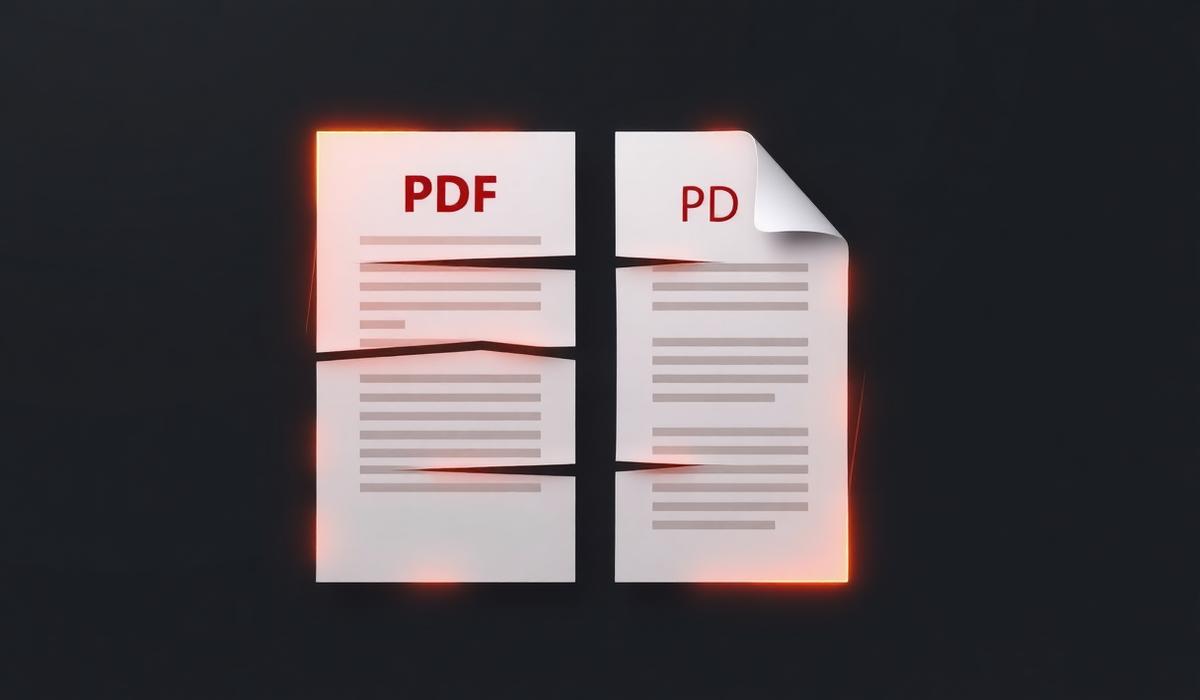
Split PDF can feel simple until pages shift, formatting breaks, or the final document is larger than expected. This guide shows a dependable workflow so you can finish the task quickly and avoid common mistakes.
%22%2F%3E%0A%20%20%3Ccircle%20cx%3D%22900%22%20cy%3D%22210%22%20r%3D%22420%22%20fill%3D%22url(%23glow)%22%2F%3E%0A%20%20%0A%20%20%20%20%20%20%0A%20%20%20%20%3Cg%20transform%3D%22translate(120%20220)%22%3E%0A%20%20%20%20%20%20%3Crect%20x%3D%226%22%20y%3D%226%22%20width%3D%22260%22%20height%3D%22260%22%20rx%3D%2210%22%20fill%3D%22%23000%22%20opacity%3D%220.45%22%2F%3E%0A%20%20%20%20%20%20%3Crect%20width%3D%22260%22%20height%3D%22260%22%20rx%3D%2210%22%20fill%3D%22%23f6efe6%22%2F%3E%0A%20%20%20%20%20%20%3Crect%20x%3D%2214%22%20y%3D%2214%22%20width%3D%22143%22%20height%3D%2210%22%20rx%3D%224%22%20fill%3D%22%23111%22%20opacity%3D%220.75%22%2F%3E%0A%20%20%20%20%20%20%3Crect%20x%3D%2214%22%20y%3D%2234%22%20width%3D%22232%22%20height%3D%226%22%20rx%3D%223%22%20fill%3D%22%23111%22%20opacity%3D%220.28%22%2F%3E%0A%20%20%20%20%20%20%3Crect%20x%3D%2214%22%20y%3D%2248%22%20width%3D%22220%22%20height%3D%226%22%20rx%3D%223%22%20fill%3D%22%23111%22%20opacity%3D%220.28%22%2F%3E%0A%20%20%20%20%20%20%3Crect%20x%3D%2214%22%20y%3D%2262%22%20width%3D%22200%22%20height%3D%226%22%20rx%3D%223%22%20fill%3D%22%23111%22%20opacity%3D%220.28%22%2F%3E%0A%20%20%20%20%20%20%3Crect%20x%3D%220%22%20y%3D%22246%22%20width%3D%22260%22%20height%3D%2214%22%20rx%3D%220%22%20fill%3D%22%23f28434%22%2F%3E%0A%20%20%20%20%3C%2Fg%3E%0A%20%20%20%20%20%20%3Cpath%20d%3D%22M%20400%20350%20L%20520%20350%22%20stroke%3D%22%23f28434%22%20stroke-width%3D%2210%22%20stroke-linecap%3D%22round%22%2F%3E%0A%20%20%20%20%20%20%3Cpolygon%20points%3D%22520%2C335%20555%2C350%20520%2C365%22%20fill%3D%22%23f28434%22%2F%3E%0A%20%20%20%20%20%20%3Cg%20transform%3D%22translate(560%20200)%22%3E%0A%20%20%20%20%20%20%20%20%3Crect%20width%3D%22200%22%20height%3D%22300%22%20rx%3D%2224%22%20fill%3D%22url(%23orange)%22%2F%3E%0A%20%20%20%20%20%20%20%20%3Ctext%20x%3D%22100%22%20y%3D%22180%22%20text-anchor%3D%22middle%22%20font-family%3D%22Space%20Grotesk%22%20font-size%3D%22120%22%20font-weight%3D%22700%22%20fill%3D%22%230b0b10%22%3ES%3C%2Ftext%3E%0A%20%20%20%20%20%20%3C%2Fg%3E%0A%20%20%20%20%20%20%3Cpath%20d%3D%22M%20780%20350%20L%20900%20350%22%20stroke%3D%22%23f28434%22%20stroke-width%3D%2210%22%20stroke-linecap%3D%22round%22%2F%3E%0A%20%20%20%20%20%20%3Cpolygon%20points%3D%22900%2C335%20935%2C350%20900%2C365%22%20fill%3D%22%23f28434%22%2F%3E%0A%20%20%20%20%20%20%0A%20%20%20%20%3Cg%20transform%3D%22translate(940%20220)%22%3E%0A%20%20%20%20%20%20%3Crect%20x%3D%226%22%20y%3D%226%22%20width%3D%22260%22%20height%3D%22260%22%20rx%3D%2210%22%20fill%3D%22%23000%22%20opacity%3D%220.45%22%2F%3E%0A%20%20%20%20%20%20%3Crect%20width%3D%22260%22%20height%3D%22260%22%20rx%3D%2210%22%20fill%3D%22%23fff7ec%22%2F%3E%0A%20%20%20%20%20%20%3Crect%20x%3D%2214%22%20y%3D%2214%22%20width%3D%22143%22%20height%3D%2210%22%20rx%3D%224%22%20fill%3D%22%23111%22%20opacity%3D%220.75%22%2F%3E%0A%20%20%20%20%20%20%3Crect%20x%3D%2214%22%20y%3D%2234%22%20width%3D%22232%22%20height%3D%226%22%20rx%3D%223%22%20fill%3D%22%23111%22%20opacity%3D%220.28%22%2F%3E%0A%20%20%20%20%20%20%3Crect%20x%3D%2214%22%20y%3D%2248%22%20width%3D%22220%22%20height%3D%226%22%20rx%3D%223%22%20fill%3D%22%23111%22%20opacity%3D%220.28%22%2F%3E%0A%20%20%20%20%20%20%3Crect%20x%3D%2214%22%20y%3D%2262%22%20width%3D%22200%22%20height%3D%226%22%20rx%3D%223%22%20fill%3D%22%23111%22%20opacity%3D%220.28%22%2F%3E%0A%20%20%20%20%20%20%3Crect%20x%3D%220%22%20y%3D%22246%22%20width%3D%22260%22%20height%3D%2214%22%20rx%3D%220%22%20fill%3D%22%23c25a10%22%2F%3E%0A%20%20%20%20%3C%2Fg%3E%0A%3C%2Fsvg%3E)
Problem Overview
Split PDF problems usually appear when documents come from different devices, scanners, or export settings. Files may look correct at first, then behave differently once opened on another computer or shared with a client.
Why It Happens
Most PDF issues come from mismatched page sizes, embedded fonts, image-heavy pages, hidden security settings, or files created in different apps. Once those elements are combined, the result can be confusing unless you review the output carefully.
Step-by-Step Solution
- 1. Open your source file — Use split pdf settings that match your final goal, then verify the preview before saving.
- 2. Check the page order — Use split pdf settings that match your final goal, then verify the preview before saving.
- 3. Apply the conversion or edit — Use split pdf settings that match your final goal, then verify the preview before saving.
- 4. Review the output — Use split pdf settings that match your final goal, then verify the preview before saving.
- 5. Save and share the final PDF — Use split pdf settings that match your final goal, then verify the preview before saving.
%22%2F%3E%0A%20%20%3Ccircle%20cx%3D%22900%22%20cy%3D%22210%22%20r%3D%22420%22%20fill%3D%22url(%23glow)%22%2F%3E%0A%20%20%0A%20%20%20%20%20%20%0A%20%20%20%20%3Cg%20transform%3D%22translate(300%20480)%22%3E%0A%20%20%20%20%20%20%3Crect%20x%3D%226%22%20y%3D%226%22%20width%3D%22600%22%20height%3D%22120%22%20rx%3D%2210%22%20fill%3D%22%23000%22%20opacity%3D%220.45%22%2F%3E%0A%20%20%20%20%20%20%3Crect%20width%3D%22600%22%20height%3D%22120%22%20rx%3D%2210%22%20fill%3D%22%23fdead3%22%2F%3E%0A%20%20%20%20%20%20%3Crect%20x%3D%2214%22%20y%3D%2214%22%20width%3D%22330%22%20height%3D%2210%22%20rx%3D%224%22%20fill%3D%22%23111%22%20opacity%3D%220.75%22%2F%3E%0A%20%20%20%20%20%20%3Crect%20x%3D%2214%22%20y%3D%2234%22%20width%3D%22572%22%20height%3D%226%22%20rx%3D%223%22%20fill%3D%22%23111%22%20opacity%3D%220.28%22%2F%3E%0A%20%20%20%20%20%20%3Crect%20x%3D%2214%22%20y%3D%2248%22%20width%3D%22560%22%20height%3D%226%22%20rx%3D%223%22%20fill%3D%22%23111%22%20opacity%3D%220.28%22%2F%3E%0A%20%20%20%20%20%20%3Crect%20x%3D%2214%22%20y%3D%2262%22%20width%3D%22540%22%20height%3D%226%22%20rx%3D%223%22%20fill%3D%22%23111%22%20opacity%3D%220.28%22%2F%3E%0A%20%20%20%20%20%20%3Crect%20x%3D%220%22%20y%3D%22106%22%20width%3D%22600%22%20height%3D%2214%22%20rx%3D%220%22%20fill%3D%22%23f28434%22%2F%3E%0A%20%20%20%20%3C%2Fg%3E%0A%20%20%20%20%20%20%0A%20%20%20%20%3Cg%20transform%3D%22translate(340%20360)%22%3E%0A%20%20%20%20%20%20%3Crect%20x%3D%226%22%20y%3D%226%22%20width%3D%22520%22%20height%3D%22130%22%20rx%3D%2210%22%20fill%3D%22%23000%22%20opacity%3D%220.45%22%2F%3E%0A%20%20%20%20%20%20%3Crect%20width%3D%22520%22%20height%3D%22130%22%20rx%3D%2210%22%20fill%3D%22%23fff7ec%22%2F%3E%0A%20%20%20%20%20%20%3Crect%20x%3D%2214%22%20y%3D%2214%22%20width%3D%22286%22%20height%3D%2210%22%20rx%3D%224%22%20fill%3D%22%23111%22%20opacity%3D%220.75%22%2F%3E%0A%20%20%20%20%20%20%3Crect%20x%3D%2214%22%20y%3D%2234%22%20width%3D%22492%22%20height%3D%226%22%20rx%3D%223%22%20fill%3D%22%23111%22%20opacity%3D%220.28%22%2F%3E%0A%20%20%20%20%20%20%3Crect%20x%3D%2214%22%20y%3D%2248%22%20width%3D%22480%22%20height%3D%226%22%20rx%3D%223%22%20fill%3D%22%23111%22%20opacity%3D%220.28%22%2F%3E%0A%20%20%20%20%20%20%3Crect%20x%3D%2214%22%20y%3D%2262%22%20width%3D%22460%22%20height%3D%226%22%20rx%3D%223%22%20fill%3D%22%23111%22%20opacity%3D%220.28%22%2F%3E%0A%20%20%20%20%20%20%3Crect%20x%3D%220%22%20y%3D%22116%22%20width%3D%22520%22%20height%3D%2214%22%20rx%3D%220%22%20fill%3D%22%23c25a10%22%2F%3E%0A%20%20%20%20%3C%2Fg%3E%0A%20%20%20%20%20%20%0A%20%20%20%20%3Cg%20transform%3D%22translate(380%20240)%22%3E%0A%20%20%20%20%20%20%3Crect%20x%3D%226%22%20y%3D%226%22%20width%3D%22440%22%20height%3D%22140%22%20rx%3D%2210%22%20fill%3D%22%23000%22%20opacity%3D%220.45%22%2F%3E%0A%20%20%20%20%20%20%3Crect%20width%3D%22440%22%20height%3D%22140%22%20rx%3D%2210%22%20fill%3D%22%23f6efe6%22%2F%3E%0A%20%20%20%20%20%20%3Crect%20x%3D%2214%22%20y%3D%2214%22%20width%3D%22242.00000000000003%22%20height%3D%2210%22%20rx%3D%224%22%20fill%3D%22%23111%22%20opacity%3D%220.75%22%2F%3E%0A%20%20%20%20%20%20%3Crect%20x%3D%2214%22%20y%3D%2234%22%20width%3D%22412%22%20height%3D%226%22%20rx%3D%223%22%20fill%3D%22%23111%22%20opacity%3D%220.28%22%2F%3E%0A%20%20%20%20%20%20%3Crect%20x%3D%2214%22%20y%3D%2248%22%20width%3D%22400%22%20height%3D%226%22%20rx%3D%223%22%20fill%3D%22%23111%22%20opacity%3D%220.28%22%2F%3E%0A%20%20%20%20%20%20%3Crect%20x%3D%2214%22%20y%3D%2262%22%20width%3D%22380%22%20height%3D%226%22%20rx%3D%223%22%20fill%3D%22%23111%22%20opacity%3D%220.28%22%2F%3E%0A%20%20%20%20%20%20%3Crect%20x%3D%220%22%20y%3D%22126%22%20width%3D%22440%22%20height%3D%2214%22%20rx%3D%220%22%20fill%3D%22%23f28434%22%2F%3E%0A%20%20%20%20%3C%2Fg%3E%0A%20%20%20%20%20%20%0A%20%20%20%20%3Cg%20transform%3D%22translate(420%20120)%22%3E%0A%20%20%20%20%20%20%3Crect%20x%3D%226%22%20y%3D%226%22%20width%3D%22360%22%20height%3D%22150%22%20rx%3D%2210%22%20fill%3D%22%23000%22%20opacity%3D%220.45%22%2F%3E%0A%20%20%20%20%20%20%3Crect%20width%3D%22360%22%20height%3D%22150%22%20rx%3D%2210%22%20fill%3D%22%23ffffff%22%2F%3E%0A%20%20%20%20%20%20%3Crect%20x%3D%2214%22%20y%3D%2214%22%20width%3D%22198.00000000000003%22%20height%3D%2210%22%20rx%3D%224%22%20fill%3D%22%23111%22%20opacity%3D%220.75%22%2F%3E%0A%20%20%20%20%20%20%3Crect%20x%3D%2214%22%20y%3D%2234%22%20width%3D%22332%22%20height%3D%226%22%20rx%3D%223%22%20fill%3D%22%23111%22%20opacity%3D%220.28%22%2F%3E%0A%20%20%20%20%20%20%3Crect%20x%3D%2214%22%20y%3D%2248%22%20width%3D%22320%22%20height%3D%226%22%20rx%3D%223%22%20fill%3D%22%23111%22%20opacity%3D%220.28%22%2F%3E%0A%20%20%20%20%20%20%3Crect%20x%3D%2214%22%20y%3D%2262%22%20width%3D%22300%22%20height%3D%226%22%20rx%3D%223%22%20fill%3D%22%23111%22%20opacity%3D%220.28%22%2F%3E%0A%20%20%20%20%20%20%3Crect%20x%3D%220%22%20y%3D%22136%22%20width%3D%22360%22%20height%3D%2214%22%20rx%3D%220%22%20fill%3D%22%23f28434%22%2F%3E%0A%20%20%20%20%3C%2Fg%3E%0A%20%20%20%20%20%20%3Cg%20transform%3D%22translate(880%2060)%22%3E%0A%20%20%20%20%20%20%20%20%3Crect%20width%3D%22180%22%20height%3D%22180%22%20rx%3D%2234%22%20fill%3D%22url(%23orange)%22%2F%3E%0A%20%20%20%20%20%20%20%20%3Ctext%20x%3D%2290%22%20y%3D%22125%22%20text-anchor%3D%22middle%22%20font-family%3D%22Space%20Grotesk%22%20font-size%3D%22110%22%20font-weight%3D%22700%22%20fill%3D%22%230b0b10%22%3ES%3C%2Ftext%3E%0A%20%20%20%20%20%20%3C%2Fg%3E%0A%3C%2Fsvg%3E)
Solution
The most reliable solution is to work from a clean source file, adjust only what you need, and export a fresh PDF at the end. Avoid repeating conversions multiple times because each extra pass can introduce layout or quality issues.
Additional Tips
- Keep a backup of the original file before editing.
- Use clear file names so your latest version is easy to find.
- Review page orientation and margins before sending the document.
%22%2F%3E%0A%20%20%3Ccircle%20cx%3D%22900%22%20cy%3D%22210%22%20r%3D%22420%22%20fill%3D%22url(%23glow)%22%2F%3E%0A%20%20%0A%20%20%20%20%20%20%3Cg%20transform%3D%22translate(200%20160)%22%3E%0A%20%20%20%20%20%20%20%20%3Crect%20width%3D%22800%22%20height%3D%22400%22%20rx%3D%2224%22%20fill%3D%22%23151016%22%20stroke%3D%22%23f28434%22%20stroke-opacity%3D%220.35%22%2F%3E%0A%20%20%20%20%20%20%20%20%3Crect%20x%3D%2240%22%20y%3D%2240%22%20width%3D%22720%22%20height%3D%2220%22%20rx%3D%226%22%20fill%3D%22%23f28434%22%20opacity%3D%220.4%22%2F%3E%0A%20%20%20%20%20%20%20%20%3Crect%20x%3D%2240%22%20y%3D%2280%22%20width%3D%22520%22%20height%3D%2214%22%20rx%3D%226%22%20fill%3D%22%23fff%22%20opacity%3D%220.35%22%2F%3E%0A%20%20%20%20%20%20%20%20%3Crect%20x%3D%2240%22%20y%3D%22110%22%20width%3D%22600%22%20height%3D%2214%22%20rx%3D%226%22%20fill%3D%22%23fff%22%20opacity%3D%220.25%22%2F%3E%0A%20%20%20%20%20%20%20%20%3Crect%20x%3D%2240%22%20y%3D%22140%22%20width%3D%22460%22%20height%3D%2214%22%20rx%3D%226%22%20fill%3D%22%23fff%22%20opacity%3D%220.25%22%2F%3E%0A%20%20%20%20%20%20%20%20%3Crect%20x%3D%2240%22%20y%3D%22200%22%20width%3D%22720%22%20height%3D%22160%22%20rx%3D%2212%22%20fill%3D%22%230b0b10%22%2F%3E%0A%20%20%20%20%20%20%20%20%3Cg%20transform%3D%22translate(320%20220)%22%3E%0A%20%20%20%20%20%20%20%20%20%20%3Crect%20width%3D%22160%22%20height%3D%22120%22%20rx%3D%2218%22%20fill%3D%22url(%23orange)%22%2F%3E%0A%20%20%20%20%20%20%20%20%20%20%3Ctext%20x%3D%2280%22%20y%3D%2288%22%20text-anchor%3D%22middle%22%20font-family%3D%22Space%20Grotesk%22%20font-size%3D%2272%22%20font-weight%3D%22700%22%20fill%3D%22%230b0b10%22%3ES%3C%2Ftext%3E%0A%20%20%20%20%20%20%20%20%3C%2Fg%3E%0A%20%20%20%20%20%20%3C%2Fg%3E%0A%20%20%20%20%20%20%3Ctext%20x%3D%22600%22%20y%3D%2290%22%20text-anchor%3D%22middle%22%20font-family%3D%22Space%20Grotesk%22%20font-size%3D%2234%22%20font-weight%3D%22700%22%20fill%3D%22%23ffb26b%22%3ESplit%20PDF%3C%2Ftext%3E%0A%3C%2Fsvg%3E)
Frequently Asked Questions
Split PDF: Will editing reduce quality?
It can if images are recompressed too aggressively. Review the output before sharing.
Split PDF: Can I do this on mobile?
Yes, but desktop workflows are easier when you need to inspect multiple pages carefully.
Split PDF: Should I keep the original file?
Yes. Always save a backup in case you need to undo changes or restore formatting.
Conclusion
Split PDF becomes much easier when you treat the PDF as a final-review format instead of an endless editing file. Follow the steps above, double-check the result, and keep a backup so you can move fast with confidence.
Related articles
 6 min read
Merge PDF
Learn how to combine multiple PDF files cleanly and avoid broken page order.
 6 min read
Compress PDF
Reduce PDF file size while keeping text readable and images usable.
 7 min read
PDF to Word
Turn a PDF into an editable Word file with better formatting retention.