Tutoriales y soluciones de PDF
Word a PDF
Exporta archivos Word a PDF sin perder diseño, tipografía ni espaciado.
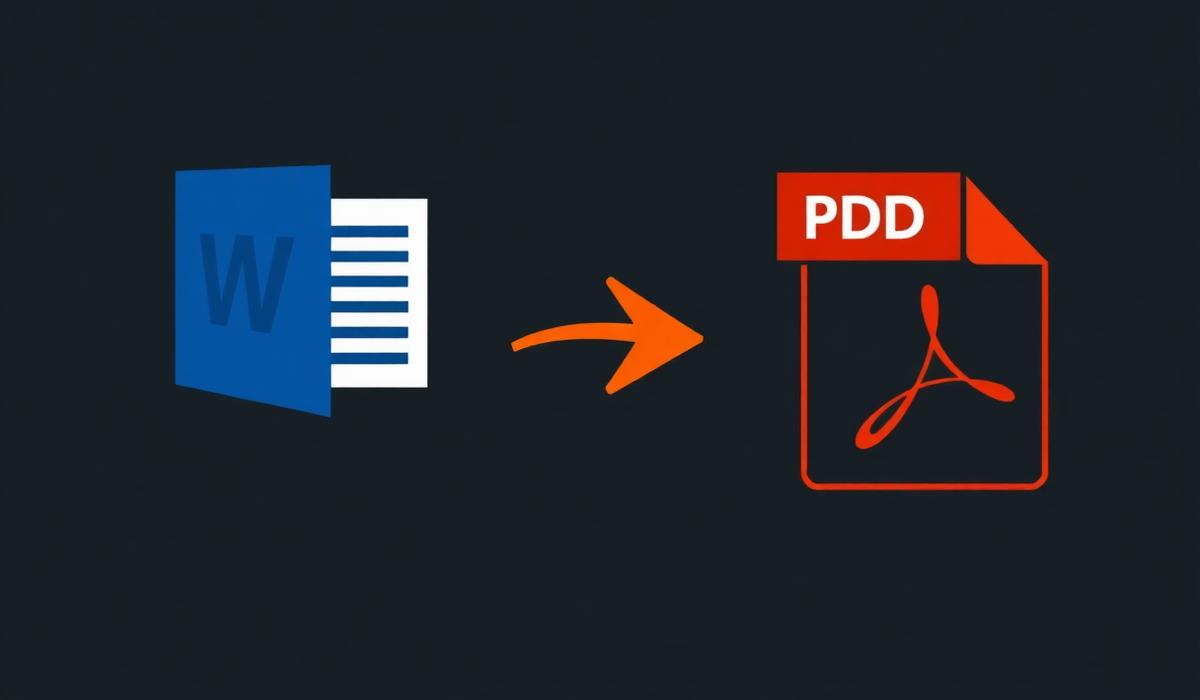
Word a PDF can feel simple until pages shift, formatting breaks, or the final document is larger than expected. This guide shows a dependable workflow so you can finish the task quickly and avoid common mistakes.
%22%2F%3E%0A%20%20%3Ccircle%20cx%3D%22900%22%20cy%3D%22210%22%20r%3D%22420%22%20fill%3D%22url(%23glow)%22%2F%3E%0A%20%20%0A%20%20%20%20%20%20%0A%20%20%20%20%3Cg%20transform%3D%22translate(120%20220)%22%3E%0A%20%20%20%20%20%20%3Crect%20x%3D%226%22%20y%3D%226%22%20width%3D%22260%22%20height%3D%22260%22%20rx%3D%2210%22%20fill%3D%22%23000%22%20opacity%3D%220.45%22%2F%3E%0A%20%20%20%20%20%20%3Crect%20width%3D%22260%22%20height%3D%22260%22%20rx%3D%2210%22%20fill%3D%22%23f6efe6%22%2F%3E%0A%20%20%20%20%20%20%3Crect%20x%3D%2214%22%20y%3D%2214%22%20width%3D%22143%22%20height%3D%2210%22%20rx%3D%224%22%20fill%3D%22%23111%22%20opacity%3D%220.75%22%2F%3E%0A%20%20%20%20%20%20%3Crect%20x%3D%2214%22%20y%3D%2234%22%20width%3D%22232%22%20height%3D%226%22%20rx%3D%223%22%20fill%3D%22%23111%22%20opacity%3D%220.28%22%2F%3E%0A%20%20%20%20%20%20%3Crect%20x%3D%2214%22%20y%3D%2248%22%20width%3D%22220%22%20height%3D%226%22%20rx%3D%223%22%20fill%3D%22%23111%22%20opacity%3D%220.28%22%2F%3E%0A%20%20%20%20%20%20%3Crect%20x%3D%2214%22%20y%3D%2262%22%20width%3D%22200%22%20height%3D%226%22%20rx%3D%223%22%20fill%3D%22%23111%22%20opacity%3D%220.28%22%2F%3E%0A%20%20%20%20%20%20%3Crect%20x%3D%220%22%20y%3D%22246%22%20width%3D%22260%22%20height%3D%2214%22%20rx%3D%220%22%20fill%3D%22%23f28434%22%2F%3E%0A%20%20%20%20%3C%2Fg%3E%0A%20%20%20%20%20%20%3Cpath%20d%3D%22M%20400%20350%20L%20520%20350%22%20stroke%3D%22%23f28434%22%20stroke-width%3D%2210%22%20stroke-linecap%3D%22round%22%2F%3E%0A%20%20%20%20%20%20%3Cpolygon%20points%3D%22520%2C335%20555%2C350%20520%2C365%22%20fill%3D%22%23f28434%22%2F%3E%0A%20%20%20%20%20%20%3Cg%20transform%3D%22translate(560%20200)%22%3E%0A%20%20%20%20%20%20%20%20%3Crect%20width%3D%22200%22%20height%3D%22300%22%20rx%3D%2224%22%20fill%3D%22url(%23orange)%22%2F%3E%0A%20%20%20%20%20%20%20%20%3Ctext%20x%3D%22100%22%20y%3D%22180%22%20text-anchor%3D%22middle%22%20font-family%3D%22Space%20Grotesk%22%20font-size%3D%22120%22%20font-weight%3D%22700%22%20fill%3D%22%230b0b10%22%3EP%3C%2Ftext%3E%0A%20%20%20%20%20%20%3C%2Fg%3E%0A%20%20%20%20%20%20%3Cpath%20d%3D%22M%20780%20350%20L%20900%20350%22%20stroke%3D%22%23f28434%22%20stroke-width%3D%2210%22%20stroke-linecap%3D%22round%22%2F%3E%0A%20%20%20%20%20%20%3Cpolygon%20points%3D%22900%2C335%20935%2C350%20900%2C365%22%20fill%3D%22%23f28434%22%2F%3E%0A%20%20%20%20%20%20%0A%20%20%20%20%3Cg%20transform%3D%22translate(940%20220)%22%3E%0A%20%20%20%20%20%20%3Crect%20x%3D%226%22%20y%3D%226%22%20width%3D%22260%22%20height%3D%22260%22%20rx%3D%2210%22%20fill%3D%22%23000%22%20opacity%3D%220.45%22%2F%3E%0A%20%20%20%20%20%20%3Crect%20width%3D%22260%22%20height%3D%22260%22%20rx%3D%2210%22%20fill%3D%22%23fff7ec%22%2F%3E%0A%20%20%20%20%20%20%3Crect%20x%3D%2214%22%20y%3D%2214%22%20width%3D%22143%22%20height%3D%2210%22%20rx%3D%224%22%20fill%3D%22%23111%22%20opacity%3D%220.75%22%2F%3E%0A%20%20%20%20%20%20%3Crect%20x%3D%2214%22%20y%3D%2234%22%20width%3D%22232%22%20height%3D%226%22%20rx%3D%223%22%20fill%3D%22%23111%22%20opacity%3D%220.28%22%2F%3E%0A%20%20%20%20%20%20%3Crect%20x%3D%2214%22%20y%3D%2248%22%20width%3D%22220%22%20height%3D%226%22%20rx%3D%223%22%20fill%3D%22%23111%22%20opacity%3D%220.28%22%2F%3E%0A%20%20%20%20%20%20%3Crect%20x%3D%2214%22%20y%3D%2262%22%20width%3D%22200%22%20height%3D%226%22%20rx%3D%223%22%20fill%3D%22%23111%22%20opacity%3D%220.28%22%2F%3E%0A%20%20%20%20%20%20%3Crect%20x%3D%220%22%20y%3D%22246%22%20width%3D%22260%22%20height%3D%2214%22%20rx%3D%220%22%20fill%3D%22%23c25a10%22%2F%3E%0A%20%20%20%20%3C%2Fg%3E%0A%3C%2Fsvg%3E)
Descripción del problema
Word a PDF problems usually appear when documents come from different devices, scanners, or export settings. Files may look correct at first, then behave differently once opened on another computer or shared with a client.
Por qué ocurre
Most PDF issues come from mismatched page sizes, embedded fonts, image-heavy pages, hidden security settings, or files created in different apps. Once those elements are combined, the result can be confusing unless you review the output carefully.
Solución paso a paso
- 1. Abre el archivo de origen — Use word a pdf settings that match your final goal, then verify the preview before saving.
- 2. Verifica el orden de las páginas — Use word a pdf settings that match your final goal, then verify the preview before saving.
- 3. Aplica la conversión o edición — Use word a pdf settings that match your final goal, then verify the preview before saving.
- 4. Revisa el resultado — Use word a pdf settings that match your final goal, then verify the preview before saving.
- 5. Guarda y comparte el PDF final — Use word a pdf settings that match your final goal, then verify the preview before saving.
%22%2F%3E%0A%20%20%3Ccircle%20cx%3D%22900%22%20cy%3D%22210%22%20r%3D%22420%22%20fill%3D%22url(%23glow)%22%2F%3E%0A%20%20%0A%20%20%20%20%20%20%0A%20%20%20%20%3Cg%20transform%3D%22translate(300%20480)%22%3E%0A%20%20%20%20%20%20%3Crect%20x%3D%226%22%20y%3D%226%22%20width%3D%22600%22%20height%3D%22120%22%20rx%3D%2210%22%20fill%3D%22%23000%22%20opacity%3D%220.45%22%2F%3E%0A%20%20%20%20%20%20%3Crect%20width%3D%22600%22%20height%3D%22120%22%20rx%3D%2210%22%20fill%3D%22%23fdead3%22%2F%3E%0A%20%20%20%20%20%20%3Crect%20x%3D%2214%22%20y%3D%2214%22%20width%3D%22330%22%20height%3D%2210%22%20rx%3D%224%22%20fill%3D%22%23111%22%20opacity%3D%220.75%22%2F%3E%0A%20%20%20%20%20%20%3Crect%20x%3D%2214%22%20y%3D%2234%22%20width%3D%22572%22%20height%3D%226%22%20rx%3D%223%22%20fill%3D%22%23111%22%20opacity%3D%220.28%22%2F%3E%0A%20%20%20%20%20%20%3Crect%20x%3D%2214%22%20y%3D%2248%22%20width%3D%22560%22%20height%3D%226%22%20rx%3D%223%22%20fill%3D%22%23111%22%20opacity%3D%220.28%22%2F%3E%0A%20%20%20%20%20%20%3Crect%20x%3D%2214%22%20y%3D%2262%22%20width%3D%22540%22%20height%3D%226%22%20rx%3D%223%22%20fill%3D%22%23111%22%20opacity%3D%220.28%22%2F%3E%0A%20%20%20%20%20%20%3Crect%20x%3D%220%22%20y%3D%22106%22%20width%3D%22600%22%20height%3D%2214%22%20rx%3D%220%22%20fill%3D%22%23f28434%22%2F%3E%0A%20%20%20%20%3C%2Fg%3E%0A%20%20%20%20%20%20%0A%20%20%20%20%3Cg%20transform%3D%22translate(340%20360)%22%3E%0A%20%20%20%20%20%20%3Crect%20x%3D%226%22%20y%3D%226%22%20width%3D%22520%22%20height%3D%22130%22%20rx%3D%2210%22%20fill%3D%22%23000%22%20opacity%3D%220.45%22%2F%3E%0A%20%20%20%20%20%20%3Crect%20width%3D%22520%22%20height%3D%22130%22%20rx%3D%2210%22%20fill%3D%22%23fff7ec%22%2F%3E%0A%20%20%20%20%20%20%3Crect%20x%3D%2214%22%20y%3D%2214%22%20width%3D%22286%22%20height%3D%2210%22%20rx%3D%224%22%20fill%3D%22%23111%22%20opacity%3D%220.75%22%2F%3E%0A%20%20%20%20%20%20%3Crect%20x%3D%2214%22%20y%3D%2234%22%20width%3D%22492%22%20height%3D%226%22%20rx%3D%223%22%20fill%3D%22%23111%22%20opacity%3D%220.28%22%2F%3E%0A%20%20%20%20%20%20%3Crect%20x%3D%2214%22%20y%3D%2248%22%20width%3D%22480%22%20height%3D%226%22%20rx%3D%223%22%20fill%3D%22%23111%22%20opacity%3D%220.28%22%2F%3E%0A%20%20%20%20%20%20%3Crect%20x%3D%2214%22%20y%3D%2262%22%20width%3D%22460%22%20height%3D%226%22%20rx%3D%223%22%20fill%3D%22%23111%22%20opacity%3D%220.28%22%2F%3E%0A%20%20%20%20%20%20%3Crect%20x%3D%220%22%20y%3D%22116%22%20width%3D%22520%22%20height%3D%2214%22%20rx%3D%220%22%20fill%3D%22%23c25a10%22%2F%3E%0A%20%20%20%20%3C%2Fg%3E%0A%20%20%20%20%20%20%0A%20%20%20%20%3Cg%20transform%3D%22translate(380%20240)%22%3E%0A%20%20%20%20%20%20%3Crect%20x%3D%226%22%20y%3D%226%22%20width%3D%22440%22%20height%3D%22140%22%20rx%3D%2210%22%20fill%3D%22%23000%22%20opacity%3D%220.45%22%2F%3E%0A%20%20%20%20%20%20%3Crect%20width%3D%22440%22%20height%3D%22140%22%20rx%3D%2210%22%20fill%3D%22%23f6efe6%22%2F%3E%0A%20%20%20%20%20%20%3Crect%20x%3D%2214%22%20y%3D%2214%22%20width%3D%22242.00000000000003%22%20height%3D%2210%22%20rx%3D%224%22%20fill%3D%22%23111%22%20opacity%3D%220.75%22%2F%3E%0A%20%20%20%20%20%20%3Crect%20x%3D%2214%22%20y%3D%2234%22%20width%3D%22412%22%20height%3D%226%22%20rx%3D%223%22%20fill%3D%22%23111%22%20opacity%3D%220.28%22%2F%3E%0A%20%20%20%20%20%20%3Crect%20x%3D%2214%22%20y%3D%2248%22%20width%3D%22400%22%20height%3D%226%22%20rx%3D%223%22%20fill%3D%22%23111%22%20opacity%3D%220.28%22%2F%3E%0A%20%20%20%20%20%20%3Crect%20x%3D%2214%22%20y%3D%2262%22%20width%3D%22380%22%20height%3D%226%22%20rx%3D%223%22%20fill%3D%22%23111%22%20opacity%3D%220.28%22%2F%3E%0A%20%20%20%20%20%20%3Crect%20x%3D%220%22%20y%3D%22126%22%20width%3D%22440%22%20height%3D%2214%22%20rx%3D%220%22%20fill%3D%22%23f28434%22%2F%3E%0A%20%20%20%20%3C%2Fg%3E%0A%20%20%20%20%20%20%0A%20%20%20%20%3Cg%20transform%3D%22translate(420%20120)%22%3E%0A%20%20%20%20%20%20%3Crect%20x%3D%226%22%20y%3D%226%22%20width%3D%22360%22%20height%3D%22150%22%20rx%3D%2210%22%20fill%3D%22%23000%22%20opacity%3D%220.45%22%2F%3E%0A%20%20%20%20%20%20%3Crect%20width%3D%22360%22%20height%3D%22150%22%20rx%3D%2210%22%20fill%3D%22%23ffffff%22%2F%3E%0A%20%20%20%20%20%20%3Crect%20x%3D%2214%22%20y%3D%2214%22%20width%3D%22198.00000000000003%22%20height%3D%2210%22%20rx%3D%224%22%20fill%3D%22%23111%22%20opacity%3D%220.75%22%2F%3E%0A%20%20%20%20%20%20%3Crect%20x%3D%2214%22%20y%3D%2234%22%20width%3D%22332%22%20height%3D%226%22%20rx%3D%223%22%20fill%3D%22%23111%22%20opacity%3D%220.28%22%2F%3E%0A%20%20%20%20%20%20%3Crect%20x%3D%2214%22%20y%3D%2248%22%20width%3D%22320%22%20height%3D%226%22%20rx%3D%223%22%20fill%3D%22%23111%22%20opacity%3D%220.28%22%2F%3E%0A%20%20%20%20%20%20%3Crect%20x%3D%2214%22%20y%3D%2262%22%20width%3D%22300%22%20height%3D%226%22%20rx%3D%223%22%20fill%3D%22%23111%22%20opacity%3D%220.28%22%2F%3E%0A%20%20%20%20%20%20%3Crect%20x%3D%220%22%20y%3D%22136%22%20width%3D%22360%22%20height%3D%2214%22%20rx%3D%220%22%20fill%3D%22%23f28434%22%2F%3E%0A%20%20%20%20%3C%2Fg%3E%0A%20%20%20%20%20%20%3Cg%20transform%3D%22translate(880%2060)%22%3E%0A%20%20%20%20%20%20%20%20%3Crect%20width%3D%22180%22%20height%3D%22180%22%20rx%3D%2234%22%20fill%3D%22url(%23orange)%22%2F%3E%0A%20%20%20%20%20%20%20%20%3Ctext%20x%3D%2290%22%20y%3D%22125%22%20text-anchor%3D%22middle%22%20font-family%3D%22Space%20Grotesk%22%20font-size%3D%22110%22%20font-weight%3D%22700%22%20fill%3D%22%230b0b10%22%3EP%3C%2Ftext%3E%0A%20%20%20%20%20%20%3C%2Fg%3E%0A%3C%2Fsvg%3E)
Solución
The most reliable solution is to work from a clean source file, adjust only what you need, and export a fresh PDF at the end. Avoid repeating conversions multiple times because each extra pass can introduce layout or quality issues.
Consejos adicionales
- Guarda una copia del archivo original antes de editar.
- Usa nombres claros para encontrar tu última versión fácilmente.
- Revisa orientación y márgenes antes de enviar el documento.
%22%2F%3E%0A%20%20%3Ccircle%20cx%3D%22900%22%20cy%3D%22210%22%20r%3D%22420%22%20fill%3D%22url(%23glow)%22%2F%3E%0A%20%20%0A%20%20%20%20%20%20%3Cg%20transform%3D%22translate(200%20160)%22%3E%0A%20%20%20%20%20%20%20%20%3Crect%20width%3D%22800%22%20height%3D%22400%22%20rx%3D%2224%22%20fill%3D%22%23151016%22%20stroke%3D%22%23f28434%22%20stroke-opacity%3D%220.35%22%2F%3E%0A%20%20%20%20%20%20%20%20%3Crect%20x%3D%2240%22%20y%3D%2240%22%20width%3D%22720%22%20height%3D%2220%22%20rx%3D%226%22%20fill%3D%22%23f28434%22%20opacity%3D%220.4%22%2F%3E%0A%20%20%20%20%20%20%20%20%3Crect%20x%3D%2240%22%20y%3D%2280%22%20width%3D%22520%22%20height%3D%2214%22%20rx%3D%226%22%20fill%3D%22%23fff%22%20opacity%3D%220.35%22%2F%3E%0A%20%20%20%20%20%20%20%20%3Crect%20x%3D%2240%22%20y%3D%22110%22%20width%3D%22600%22%20height%3D%2214%22%20rx%3D%226%22%20fill%3D%22%23fff%22%20opacity%3D%220.25%22%2F%3E%0A%20%20%20%20%20%20%20%20%3Crect%20x%3D%2240%22%20y%3D%22140%22%20width%3D%22460%22%20height%3D%2214%22%20rx%3D%226%22%20fill%3D%22%23fff%22%20opacity%3D%220.25%22%2F%3E%0A%20%20%20%20%20%20%20%20%3Crect%20x%3D%2240%22%20y%3D%22200%22%20width%3D%22720%22%20height%3D%22160%22%20rx%3D%2212%22%20fill%3D%22%230b0b10%22%2F%3E%0A%20%20%20%20%20%20%20%20%3Cg%20transform%3D%22translate(320%20220)%22%3E%0A%20%20%20%20%20%20%20%20%20%20%3Crect%20width%3D%22160%22%20height%3D%22120%22%20rx%3D%2218%22%20fill%3D%22url(%23orange)%22%2F%3E%0A%20%20%20%20%20%20%20%20%20%20%3Ctext%20x%3D%2280%22%20y%3D%2288%22%20text-anchor%3D%22middle%22%20font-family%3D%22Space%20Grotesk%22%20font-size%3D%2272%22%20font-weight%3D%22700%22%20fill%3D%22%230b0b10%22%3EP%3C%2Ftext%3E%0A%20%20%20%20%20%20%20%20%3C%2Fg%3E%0A%20%20%20%20%20%20%3C%2Fg%3E%0A%20%20%20%20%20%20%3Ctext%20x%3D%22600%22%20y%3D%2290%22%20text-anchor%3D%22middle%22%20font-family%3D%22Space%20Grotesk%22%20font-size%3D%2234%22%20font-weight%3D%22700%22%20fill%3D%22%23ffb26b%22%3EWord%20a%20PDF%3C%2Ftext%3E%0A%3C%2Fsvg%3E)
Preguntas frecuentes
Word a PDF: ¿Editar reduce la calidad?
Puede ocurrir si las imágenes se recomprimen demasiado. Revisa el resultado antes de compartirlo.
Word a PDF: ¿Puedo hacerlo en móvil?
Sí, pero en escritorio es más cómodo si necesitas revisar varias páginas con detalle.
Word a PDF: ¿Debo guardar el archivo original?
Sí. Conserva una copia por si necesitas deshacer cambios o recuperar el formato.
Conclusión
Word a PDF becomes much easier when you treat the PDF as a final-review format instead of an endless editing file. Follow the steps above, double-check the result, and keep a backup so you can move fast with confidence.
Artículos relacionados
 6 min de lectura
Unir PDF
Aprende a unir varios archivos PDF sin romper el orden de las páginas.
 6 min de lectura
Comprimir PDF
Reduce el tamaño del PDF manteniendo texto legible e imágenes útiles.
 5 min de lectura
Dividir PDF
Extrae solo las páginas necesarias de un PDF largo sin dañar el original.